Instructions for Laser Cutting File Set Up
We will be adding more tutorials, instructions, and tips for setting up your laser-cut parts. In the meantime, please read the following information before sending us a file for a quote:
- Accepted file types
- Laser cutting file set up
- Laser engraving file set up
- Free programs for drawing laser-cut parts
- Setting up a sketch or mock-up (if we are drawing your parts for you)
Accepted file types for laser cutting
We use CorelDRAW 12 and TurboCAD professional version 11 to draw and laser-cut parts. We can also use files from a variety of other programs as long as you can export or save as one of the vector-format file types below.
File types if your parts or layouts are 23.5" x 35.5" or less, and are 1/4" or thinner
- DXF compatible with AutoCAD version 2004 or earlier
- DWG compatible with AutoCAD version 2004 or earlier
- CDR version 12 or earlier
- AI version CS or earlier
- SVG
- The file can contain any type of curve or line
File types if your parts or layouts are between 23.5" x 35.5" and 35" x 9.5", or thicker than 1/4"
- DXF compatible with AutoCAD version 2004 or earlier
- DWG compatible with AutoCAD version 2004 or earlier
- All curves in the file must be made up of circular arc segments (no elliptical arcs, ellipses, Bezier curves, or other arbitrary curve types, and no curves approximated by very short, straight line segments). This might mean that you will have to re-trace all curves by hand with many small, circular arc segments using a snapping feature and an arc-drawing tool.
Other file types
We might be able to use other vector drawing file formats not listed above; you are welcomed to send a different file type via the quote request form (if we cannot open it, we will let you know). If in doubt, please send a DXF file compatible with AutoCAD version 2004 or earlier (most programs let you "Save as" or "Export" to this file type and have a “Set up” or “Advanced” option to set the AutoCAD version compatibility). If you need us to create a file for you, please see the topic below about setting up a sketch or mock-up.
Laser cutting file set up instructions
If you would like to create a laser cutting file for your parts using a program such as CorelDRAW, Adobe Illustrator, TurboCAD, AutoCAD, or Open Office Draw, please set up your files as follows:
- Cut lines — Draw thin, black lines where you want the laser to cut; the laser will cut down the center of your lines. In CorelDRAW, the lines should be "Hairlines". In TurboCAD, the line thickness should be 0. In other programs, be sure the cut lines are 0.003 inches wide or less.
- Size reference — Include and label a one-inch square size reference in your file.
- Standard layout areas are listed below. The parts shown below were laid out in a 11.75" x 23.75" area.
Be sure to leave at least 0.05" between adjacent parts in your layout (for materials thicker than 1/4", adjacent parts should be no closer together than the material thickness).
If you need a different layout area, we can use any sheet size up to 35.5" x 50" that we can be cut from a 48" x 96" sheet, in which case the layout must have at least a 1/4" border all the way around.
- 11.75" x 11.75"
- 11.75" x 23.75"
- 23.75" x 23.75"
- 23.75" x 35.25"
- 35.00" x 47.50"
- The largest layout area is 35" x 49.5" and would require a CAD file as detailed below.
- CAD files — If you are drawing your parts in CAD, be sure the file is purely two-dimensional
- CAD files for large or thick parts — If your part is larger than 23.5" x 35.5", or if it is thicker than 1/4", we require a DXF or DWG file created in a CAD program. The file must contain only circular arcs and straight lines (no elliptical arcs, ellipses, Bezier curves, or other arbitrary curve types, and no curves approximated by very short, straight lines). This might mean that you will have to re-trace all curves in your file with many small circular arc segments using a snapping feature and an arc-drawing tool.
- Send only one file — The file should include one copy of each unique part with indications of how many of each you need, and the material from which each should be cut. This information can either be text in the file, or explained in the special notes section of the quote request form. Please make sure to leave enough space around every part so that we can easily select them by dragging a rectangle around them.
- Layouts — If you would like to layout your own parts, please include the layout in a different area in your file (away from the single copies of each unique piece) and label it as your layout. (If you have many small, unique pieces in your layout, you do not have to separately include a single copy of each part and state how many of each you need; the layout by itself will suffice.)
- Line sharing — When setting up a layout that includes line sharing (two parts right next to each other so that they share a single cut line), please be sure to delete any redundant copies of lines. If you have lines stacked on top of each other, though you might not be able to see them in your file, the laser cutter will see the paths and end up cutting twice along the same line, degrading the final part (and possibly causing melting or warping).
- Multiple files — If you must send more than one file, please zip them and submit them in a single quote request, and explain the materials and quantities you would like for each file in the special instructions field of the quote request form.
- Saving cut outs — If you need the cutouts that fall out from your main parts, please specify this in your file or in the special instructions field in the quote request form.
- Sharp corners — If you have any sharp corners, you might consider rounding them (called "adding a radius" to a corner, or "adding a fillet") so your parts will be less likely to crack around the corners. We can certainly cut your parts with sharp corners if you prefer.
- Adjust for kerf — You may want to adjust for the kerf (the thickness of the laser beam), which is about 0.01". (The laser centers itself on the lines you draw and takes off about 0.005" of material from either side of the lines.) For example, if you would like the hole in your part to have a diameter of roughly 1.0", you should draw a hole with a diameter of 0.99". If you would like a circular part with a diameter of about 3.0", draw a circle with a 3.01" diameter. (These numbers are approximate and can vary depending on the material and its thickness.) In CAD programs, this can be achieved using an offset of 0.005".
- Small details should be no smaller than material thickness. For example, if you are cutting a spider web pattern from 1.5 mm acrylic, the thin pieces of plastic that make up the web must be no thinner than 1.5 mm wide in your drawings. Note that the laser beam thickness will cause the final piece to have webs that are slightly less than 1.5 mm wide. We can attempt to cut thinner pieces than this general rule of thumb allows, but the part will likely warp and be very fragile.
- Text should be converted from a font to line art (often called "breaking apart text to lines or polylines" in CAD, or "converting text to curves" in other drawing programs). Otherwise, if we do not have the font you are using, our programs will substitute your font with a different one.
- The engraving portion of any part that we are cutting should be set up as described in the below section about laser engraving file set up.
- Laser cutting costs are detailed at our laser cutting pricing page.
Laser engraving file set up instructions
We can do two types of laser engraving (also called laser etching): vector engraving and raster engraving. Please note the following when setting up your files for engraving:
- Vector engraved lines should be indicated with different RGB colors (each color indicating a different engraving depth) as shown in this file of a pentominoes puzzle set with vector-engraved solutions shown in red. Please group all items of the same color and indicate the approximate engraving depths that you would like for each color. We can vector engrave parts up to 35" x 49.5".
- Raster-engraved areas in your file should not have a thin, black outline around it (otherwise the laser will cut along that outline). The depth of the engraving is specified by the gray-scale color of the pixel (black gets engraved the deepest, gray is engraved to medium depth, and white is left un-engraved). Please specify the depth of the black (deepest) portions of your image and color everything else with the appropriate grays (50% black will get engraved about half as deep as the black portion). We can raster-engrave parts that are up to 23.5" x 35.5".
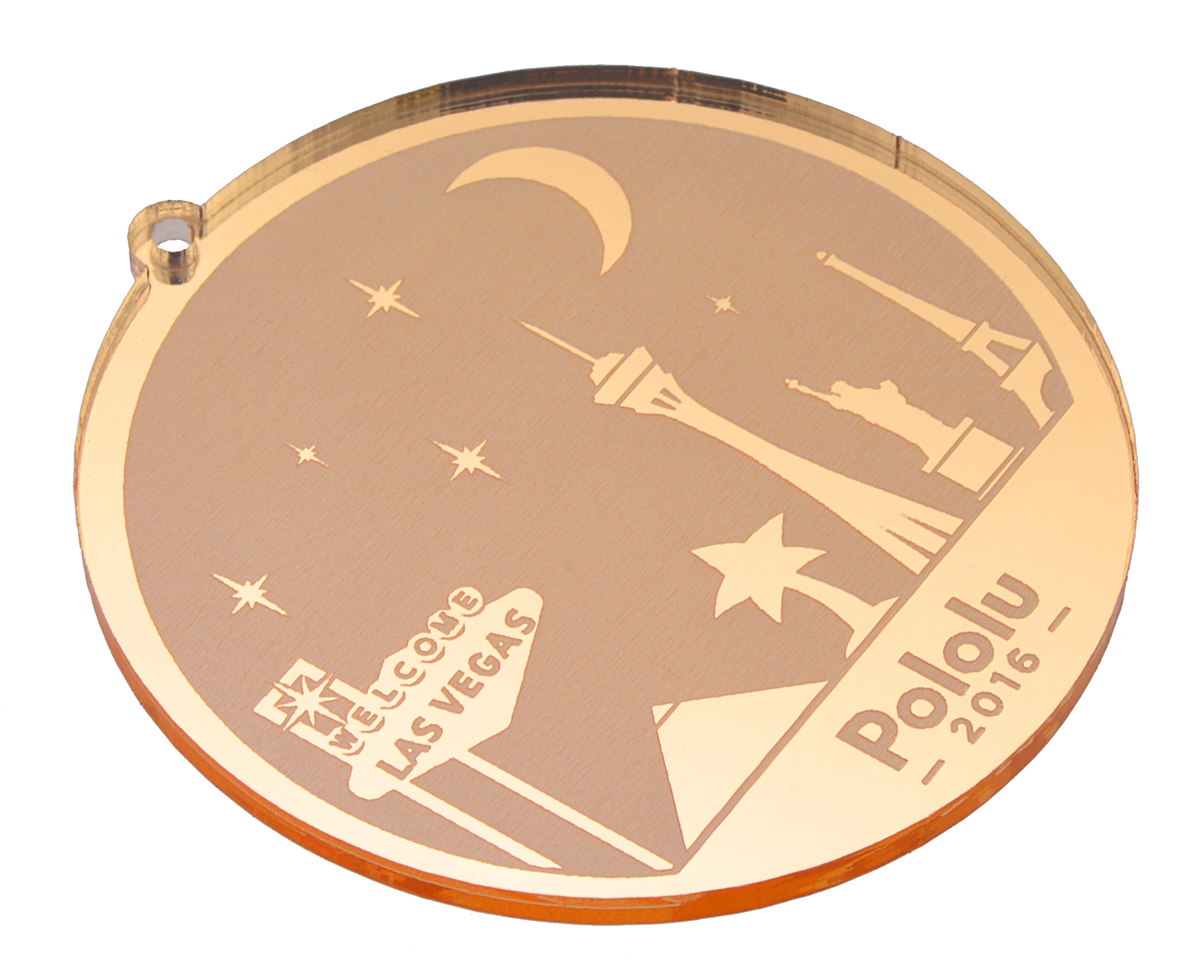
- Front or back engraving — We can engrave clear plastic from the front or back of the material. When engraving from the back, we will be sure to set up your file correctly (mirror image) so that any text and all images look correct when viewed from the front. Mirrored acrylic is typically engraved from the back (the matte gray side) so that when you look at the piece from the front, mirrored side, you can see the engraved areas that have been etched away in the mirror substrate.
- Text for engraving should be converted from a font to line art (often called "breaking apart text to lines or polylines" in CAD, or "converting text to curves" in other drawing programs). Be sure to fill the line-art text black and remove any thin, black outlines that would otherwise get cut.
- Protective masking — We typically remove the paper masking on acrylic when engraving (to avoid gooing up the engraving with the glues in the masking, and to make peeling the masking easier for you), and we re-mask the material during cutting (to protect the plastic from residues that are created during cutting). You might consider requesting that we engrave with the masking left on if you plan to paint the engraved areas a different color (so that the masking will serve as a mask during painting). If you need a high-contrast engraving, you might consider using two-tone acrylic (top thin layer is a different color than the core).
- All images, lines, text, etc. to be engraved should be a part of the same file as the cutting file (see the above section about laser cutting file set up for details).
- Laser engraving costs are listed at our laser cutting pricing page.
Programs for drawing laser-cut parts
We use CorelDRAW 12 and TurboCAD professional version 11 to draw and cut parts. We can also open files from a variety of other programs (please see our accepted file types above). If you need a program to draw your parts in vector-format, here are a few free trials or completely free programs to try:
- Open Office Draw: This free vector-graphics drawing software is part of a free office suite, Open Office. You will have to download the entire suite of programs to use Open Office Draw. You can download the suite from www.openoffice.org. We can use PDF files saved in this program to cut parts no larger than 23.5" x 35.5" and no thicker than 1/4".
- CorelDRAW trial version: You can download a free trial of this vector-graphics drawing software (with capabilities similar to Adobe Illustrator) at www.corel.com. Please save your file as version 12 or earlier before submitting them for a quote so that we can open it. We can use CDR files from this program to cut parts no larger than 23.5" x 35.5" and no thicker than 1/4".
- TurboCAD professional trial version: You can download a free trial of this CAD software at www.turbocad.com. Please save your file as a DXF (compatible with AutoCAD version 2004 or earlier). You can access this option in TurboCAD in the "Save As" window under a "Setup" button or tab. Please see accepted file types above to learn about certain restrictions on the file for larger parts.
Setting up a sketch or mock-up (if we are drawing your parts for you)
To laser cut parts, we will need one of the accepted file types listed above. If you would like us to draw your parts on the computer for you, you will need to prepare a mock-up file of your parts or a file with a written description communicating the parts you need. The file can be any file type that we can read, such as a text file with a written description, a scan of a hand sketch (JPG, GIF, BMP, PDF), a mock-up in Word, Paint, or Excel, etc.
To request a quote that includes file creation, please submit your file in the quote request form and mention that you need us to draw your parts in the special instructions field. File creation costs are listed at our laser cutting pricing page.
Please follow these guidelines when preparing your mock-up file:
- Written descriptions should include all sizes of parts, quantities required, and material types and colors for each part. For example:
Qty Material Description 2 1/8" clear acrylic - Circle diameter 3" 8 1/16" black ABS - 5" x 5" square with four 1/8"-diamter mounting holes in the corners (center of mounting holes should be 1/2" away from the corners of the square) 10 1/16" white Delrin - Circle diameter 10" with 1/4" center hole, will supply the Delrin in 12" x 12" sheets, will ship a few extra sheets just in case, material will be coming from www.mcmaster.com - If you are drawing a sketch by hand, please scan your drawing and send the resulting JPG, GIF, BMP, or PDF file. Kinko’s, Office Max, Office Depot, or any copy shop should be able to make a scan for you.
- Mock-ups and scans should include all relevant dimensions (be sure to indicate the units of measure you are using). Please try as much as possible to make your drawings close to scale.
- When showing the location of a hole, please specify the distances from the hole's center to the nearby edges of the part.
- Include the quantity required for each part.
- Include the material type, thickness, color, and supplier for each part. You can see the materials we stock at our materials page. If you will be supplying the material, please specify the sheet size you will be sending.
- If you need to send more than one file, please zip the files.